
Add Phone NumberUpdated 2 months ago
You can add one or more phone numbers to your One Good Card so visitors can easily call, message, or reach out to you.
💡 Quick Answer:
Add your primary number under Primary Information for main contact, or use the Mobile Field Widget for extra numbers. Save, and the numbers become clickable on your card.
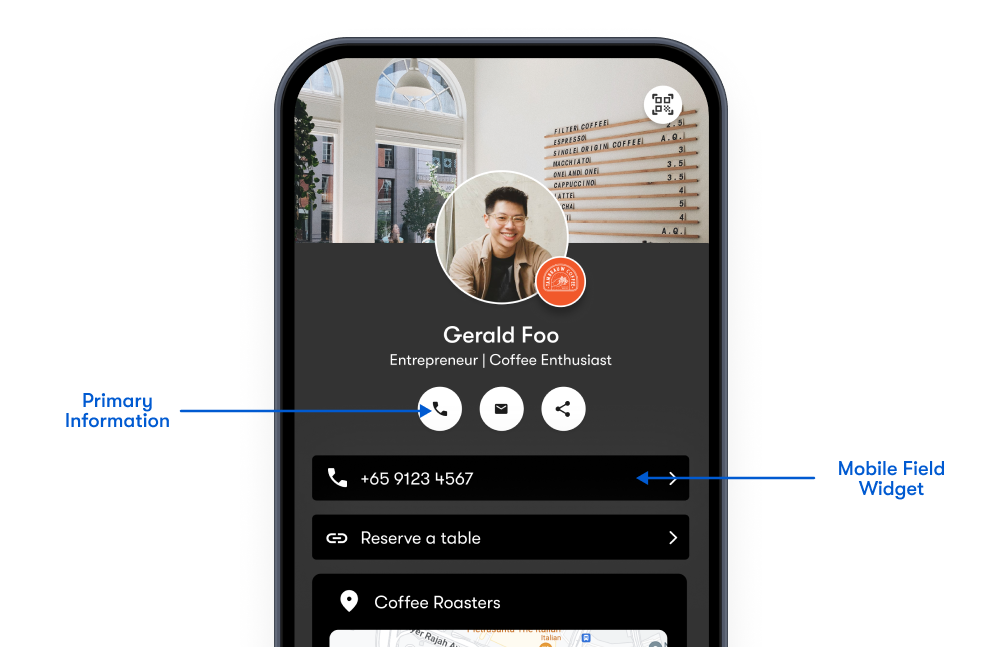
Option 1: Add Your Phone Number Under Primary Information
- Log in to your One Good Card account.
- Click the Pen Icon to edit your digital business card.
- In the Primary Information section, enter your mobile number. Include the country code (e.g. +65) to ensure global click-to-call functionality.
- Click Save!
✨ Pro Tip:
Your mobile number will appear as a clickable call icon and will be automatically included when someone saves your contact.
Option 2: Add a Phone Number Using a Widget
- In the Profile Editor, click + Add Widget.
- Select the Mobile Field Widget.
- Enter your mobile number.
- Choose between Mobile or Work labels to categorise your number.
- Click Save!
✨ Pro Tip:
This number will appear as a separate interactive button on your card, enabling direct calls or messages.
Frequently Asked Questions
Will my number be saved when someone downloads my contact?
Yes — phone numbers in your digital business card are automatically included in the vCard file when a visitor saves your contact.
Can I use both the primary number and a widget?
Yes! Add a main number under Primary Information and use the widget for secondary or specialised contacts.
Will people be able to call or message directly?
Yes — phone numbers are clickable and open the dialer automatically on mobile devices.