
Add Team Members by Individual/BulkUpdated 2 months ago
Adding team members to One Good Card for Teams is designed to be quick and flexible — whether you’re onboarding one new hire or rolling out digital business cards to an entire department at once. This guide covers both individual invites and bulk uploads via CSV, along with best practices to avoid common mistakes.
Option 1: Add Team Members Individually
Adding members individually is ideal when onboarding a small number of people or handling one-off hires.
- Log in to your One Good Card Teams Admin Dashboard.
- Go to Business Cards from the sidebar.
- Click + Add Member, and Add Member by Individual
- Enter the team member’s details (name, email, serial number if applicable).
- Click Proceed.

💡 Note:
- If the member is an existing One Good Card user, an invitation will be sent to their email and notifications page. They must accept the team invite before being added to your team dashboard.
Option 2: Bulk Upload Team Members via CSV
Bulk upload is the fastest way to onboard multiple team members at once, perfect for new teams, company-wide rollouts, or seasonal hiring. It is the recommended option if you are adding more than 5 new team members.
How to Bulk Upload via CSV
- Go to Business Cards in your Admin Dashboard.
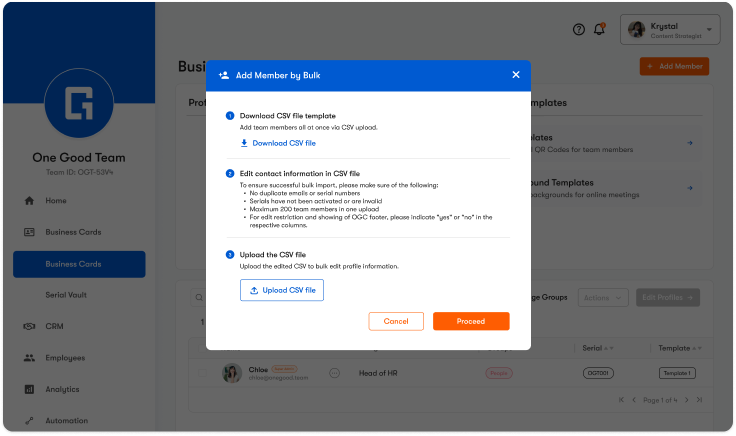
- Click + Add Member, and Add Member by Bulk
- Download the CSV template file.
- Fill in the required fields on the CSV(e.g. name, email, designation).
- Save the file as a CSV.
- Upload the completed CSV file.
- Review the preview and click Proceed.
CSV Upload Best Practices
To ensure a smooth bulk onboarding experience, follow these best practices:
- Use the official CSV template provided in the dashboard.
- Ensure all email addresses are valid and unique.
- Avoid extra spaces or special characters in fields.
- Upload in smaller batches (maximum 200 members) if onboarding a very large team.
Frequently Asked Questions
Q: Can I mix individual invites and bulk uploads?
A: Yes. You can freely add members individually or via CSV at any time.
Q: What happens if someone doesn’t receive the invite email?
A: Admins can resend the invitation from the Teams dashboard or ask the user to check their spam folder.
Q: Can I edit member details after uploading?
A: Yes. You can edit individual profiles or use bulk edit tools after onboarding.
Q: Is there a limit to how many members I can upload?
A: The limit depends on your plan and available seats. You’ll be notified if you exceed your allowance.