
Bulk Edit Multiple Digital Business CardsUpdated 2 months ago
With One Good Card for Teams, admins will be able to bulk update multiple profiles at the same time, ensuring consistency, saving hours of manual work, and keeping every card on-brand.
This is especially useful during onboarding, rebranding, or company-wide updates.
You can bulk edit business card profiles across three main sections:
- Primary Information
- Widgets
- Style
How to access Bulk Editing
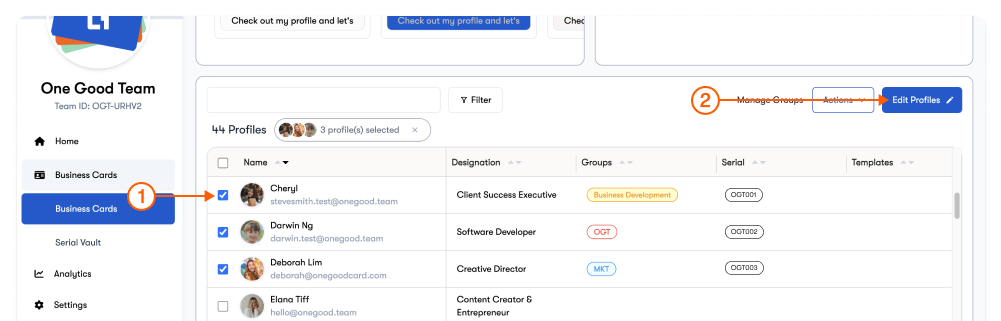
- Log in to your OGC for Teams Admin Dashboard.
- Go to Business Cards.
- Select multiple team members using the checkboxes.
- Click Edit Profiles.
Bulk Edit Primary Information
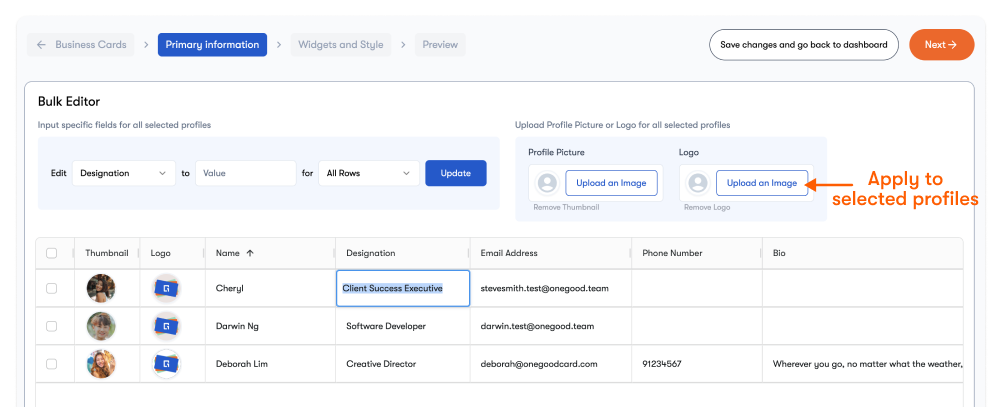
- Upload images to the Profile Picture by selecting the + icon
- Edit directly by double-clicking and typing in their individual fields.
- Use the Bulk Editor to mass edit the fields that are the same for all profiles. Select the fields (e.g. Designation) → Enter the value (e.g. Sales Executive) → Select for All Rows or selected rows
- Upload your logo image to the bulk editor and apply it to all selected profiles
Bulk Edit Widgets
Widgets control how information and actions appear on each digital business card. With bulk editing, you can:
- Add the same widget to multiple profiles at once
- Remove widgets that are no longer needed
- Reorder widgets consistently across the team
Common widgets added via bulk actions include:
- Company details
- Website or custom links
- Social media links
- Contact forms
- Product listings
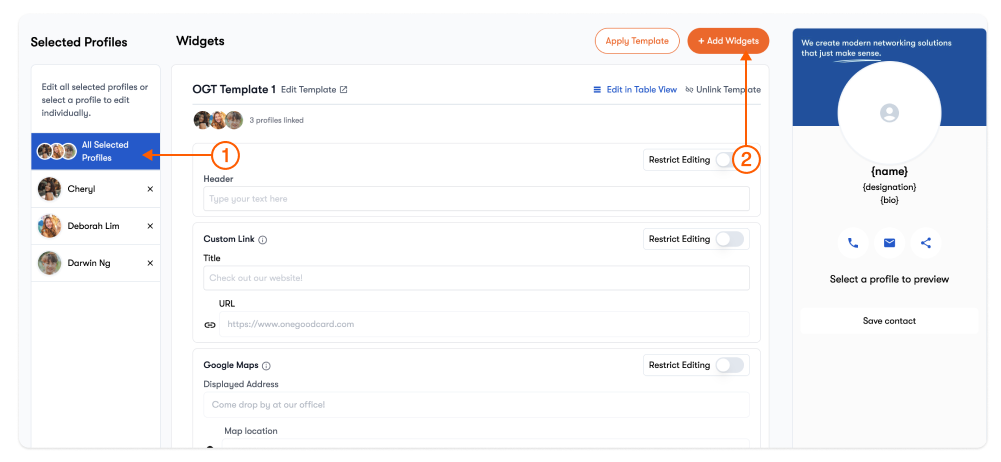
- Ensure that you are on All Selected Profiles, click + Add Wigets
- Select the widget you would like to input (e.g. social media, custom link)
- Fill in the necessary information for the widget (e.g. social media handle, URL)
- Reorder widgets if you would like to do so
- Select a profile to preview on the right side preview
- Click Next → to proceed and save.
Bulk Edit Style
Bulk styling ensures all team cards look cohesive and on-brand.
You can apply changes such as:
- Brand colours (text, buttons, icons)
- Background or banner styles
This is especially useful when rolling out new brand guidelines or refreshing your company’s visual identity.
- On the Widgets and Styles page, ensure that you are on All Selected Profiles.
- Scroll down to the Style section
- Use the colour picker, or upload a custom banner or background image
- Preview on the right side profile
- Click Next → to proceed and save.
✨ Pro Tips:
- Use Team Templates to keep all profiles consistent quickly and easily.
- Preview changes before saving to avoid overwriting important information.
Frequently Asked Questions
Q: Will bulk editing overwrite personal contact information?
A: Bulk actions only update the fields you select. Personalised widget fields remain untouched unless explicitly edited.
Q: Can I bulk edit only part of a profile?
A: Yes. You can choose whether to bulk edit Primary Information, Widgets, or Style independently, unless they are part of a Team Template.
Q: Is bulk editing reversible?
A: Changes are applied immediately upon saving changes. If needed, you can run another bulk edit or reapply a Team Template.
Q: Who can bulk edit profiles?
A: Bulk editing actions are available to admins and super admins in One Good Card for Teams.