
Create and Customise PipelinesUpdated 2 months ago
Let’s say you find that our generic sales pipeline doesn’t quite fit your workflow. Maybe you prefer different terminology or just want to keep things to 3 clear stages instead of 6. With One Good Card, you can customise your own sales pipeline — or even create multiple pipelines for different purposes. Whether you're in sales, PR, consulting, or a creative field, you can make the system work your way.
What is a Sales Pipeline?
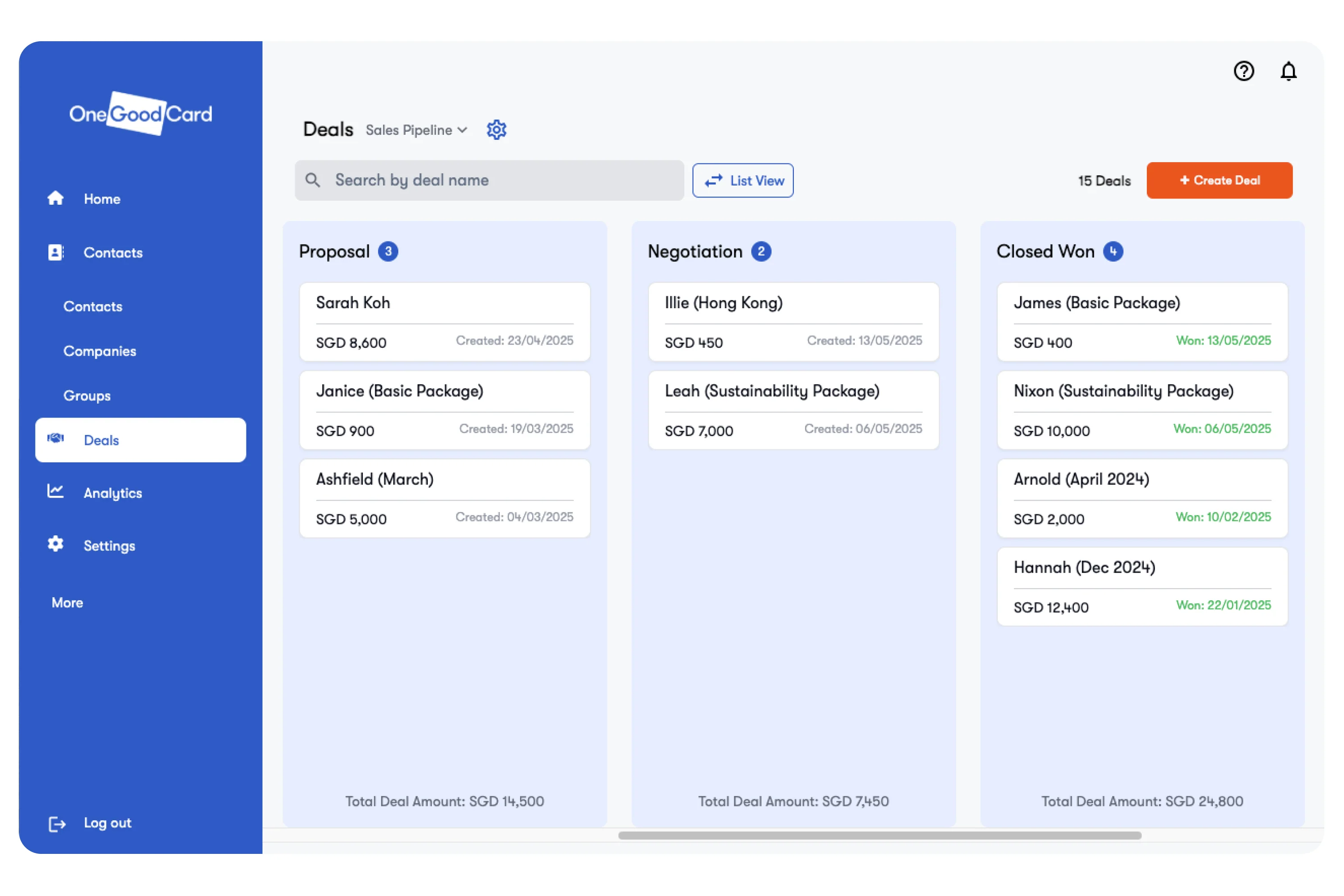
A pipeline is the overall flow your deals move through — from first contact to closing. Each pipeline is made up of deal stages, like “Lead In”, “Negotiation”, or “Won”.
- Create multiple pipelines (e.g., B2B, partnerships, internal projects)
- Define your own stages per pipeline
- Streamline your deal tracking
Create Pipelines for Different Uses
You can set up separate pipelines for:
- Different services (e.g., PR campaigns vs. media training)
- Different workflows (e.g., client sales vs. sponsorship deals)
This keeps things organised, focused, and easy to manage at a glance.
How to Create and Customise Pipelines & Deal Stages
- Log in to your One Good Card account.
- Go to Deals & click on Settings at the Top Right.
- Select Manage Deal Stages (Pipeline).
- Under the Dropdown Menu, click Create New Pipeline.
- Give this pipeline a custom name — e.g. “Client Projects”, “Event Leads”, or “Enterprise Sales”.
- Customise or add new deal stages accordingly. Examples:
- Stage 1: New Lead
- Stage 2: Meeting Scheduled
- Stage 3: Proposal Sent
- Stage 4: Deal Won
- Click Create New Pipeline to Save.
✨ Pro Tips:
- You can edit or rearrange stages anytime to reflect your evolving process.
- Create separate pipelines for different teams or service lines to keep workflows organised.
- Use clear stage names so everyone on your team knows the exact meaning and action required.
Frequently Asked Questions
Q: Can I create more than one sales pipeline?
A: Yes! You can create multiple pipelines for different workflows, services, or teams.
Q: Can I rename or delete a pipeline?
A: Absolutely. Go to Manage Deal Stages and select the pipeline you want to rename or delete.
Q: Can I reorder stages after creating a pipeline?
A: Yes! Stages can be rearranged anytime to match your evolving sales process.