
Manage ProductsUpdated 2 months ago
Managing your One Good Card products is quick and easy. Whether you’re activating a new card, linking it to your profile, or transferring ownership to someone else. This guide will walk you through each step so you can get the most out of your digital business card and stay organised.
Activating Your One Good Card
Once you’ve received your physical One Good Card, you’ll need to activate it before use. Activation links your unique serial number to your One Good Card account, ensuring your card connects properly to your digital profile. Refer to this article for a step-by-step guide on how to activate your One Good Card
Linking Multiple Products
If you own more than one One Good Card product, such as an Obsidian metal card and a One Good Ring, you can link all of them to the same profile. This makes sharing seamless across different formats.
- Each product has its own unique serial number.
- You can link multiple products to a single account.
- Tap or scan any product — they’ll all lead to your active profile.
How to Link Multiple Products to the Same Profile?
- Log in: Open your One Good Card account.
- Click Settings: On the bottom/side bar, select Settings.
- Select Manage Products: Click Activate Product if you are activating the product for the first time.
- Enter Serial Number: Select the type of OGC Product and type the serial number printed on the product or packaging (e.g. OGT123A).
- Choose Profile: Select which digital profile you want to tag the product to.
- Activate: Click Activate — your product is now linked to your profile.
How to Assign Products to Another Profile?
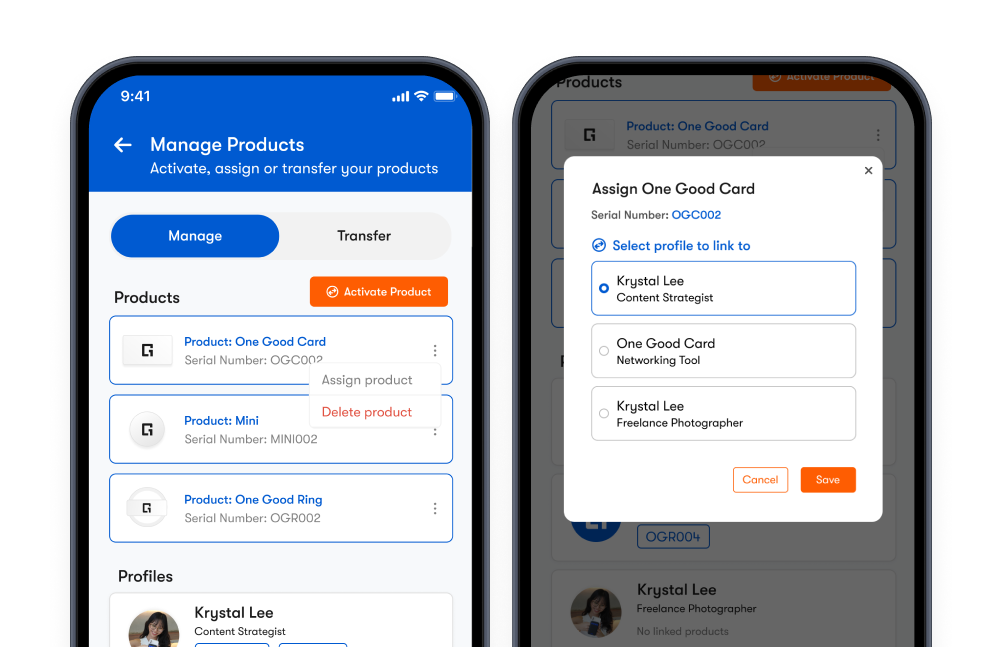
If you have multiple One Good Card digital profiles, you can manage and assign your One Good Card products to different profiles. This is useful if you are managing multiple products and profiles for different use cases or businesses.
- Select Manage Products: Head to Settings and select Manage Products.
- Select the ellipsis ⋮ : Select Assign Product
- Choose Profile: Select which digital profile you want to tag the product to.
- Assign: Click Assign — your product is now linked to the chosen profile.
Transferring Ownership of a One Good Card
Need to pass your card to a new user? You can easily transfer ownership through your dashboard. This is useful for team members, company-issued cards, or reassigning a product to someone else.
- Go to Manage Product, and head to the Transfer tab.
- Select Transfer OGC, and the product you want to transfer.
- You will receive a unique OTP code to share with the recipient you would like to give your OGC to
- On the recipient's account, head to the same settings page and click Receive OGC.
- Enter the unique OTP code received from the sender.
- Verify the transfer, and the product will now appear on the recipient's account instead of yours.
Deleting a Product
If you have misplaced your One Good Card, you can delete it from Manage Product.
- Go to Settings → Manage Products.
- Click Delete to unlink it from your current profile. This step cannot be undone.
- The misplaced One Good Card will be unlinked from your profile and will not share your contact details anymore
✨ Pro Tips:
- Keep a record of your serial numbers for quick reference.
- If you’re managing multiple teams’ cards, it is recommended to use OGC for Teams, a Centralised Management Dashboard to control all team members cards under one unified admin panel.
Frequently Asked Questions
Q: Where do I find my card’s serial number?
A: You’ll find the serial number on the packaging of each product. If you have misplaced your serial number, please reach out to our support team.
Q: Can I activate multiple cards under one profile?
A: Yes! You can activate and link multiple One Good Card products, all directing to the same digital profile.
Q: What happens if I transfer my card?
A: Once transferred, the product will be removed from your account and added to the new owner’s account. They’ll need to link it to their selected profile.
Q: Can I undo a transfer?
A: Transfers are final once accepted. You will have to contact the recipient if you would like to have the product transferred back to you.
Q: Do I need to reactivate my card if I update my profile?
A: No, your card automatically reflects your latest digital profile updates. There’s no need to reactivate.