
Save Contact with One Good CardUpdated 2 months ago
In this guide, we'll show you how to easily save contacts using your digital name card from One Good Card. Follow these simple steps to streamline your networking process.
💡 Quick Answer:
To save a contact with One Good Card, simply tap or scan their card, then click “Save Contact”. The contact is instantly added to your address book for future networking.
How to Save a Contact with One Good Card
Saving a contact with One Good Card is straightforward and quick. Here's how:
- Open the Profile: Navigate to the One Good Card profile you want to save.
- Click 'Save Contact': Simply click the 'Save Contact' button, and you're done!
For iPhone Users
Select 'Create a New Contact' after clicking 'Save Contact'. The information will be downloaded directly into your phone book.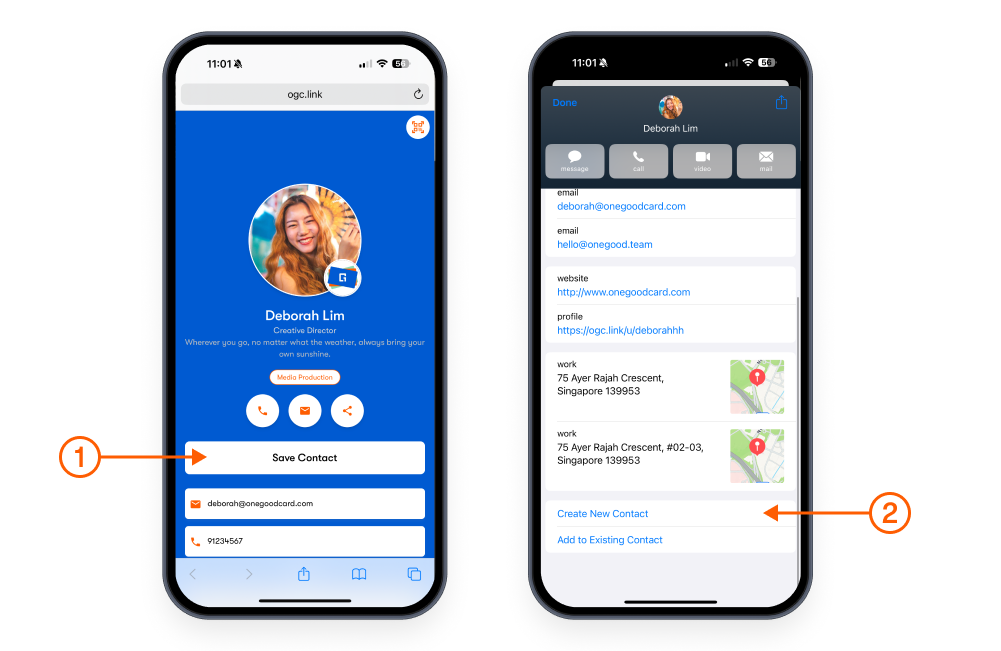
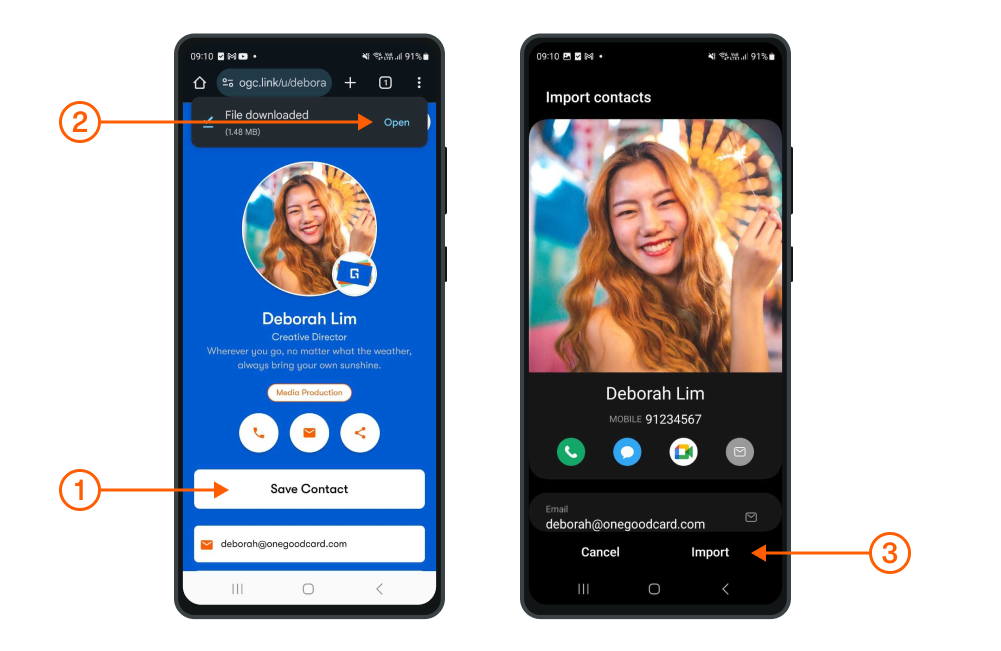
For Android Users
After clicking 'Save Contact', the contact file will download. You can import it into your phone book, Google Contacts, or other platforms.
✨ Pro Tips:
- Add tags or categories for easier filtering (e.g., leads, partners, events).
- Utilise the CRM notes feature to record important details about the contact.
Customising the 'Save Contact' Button Position
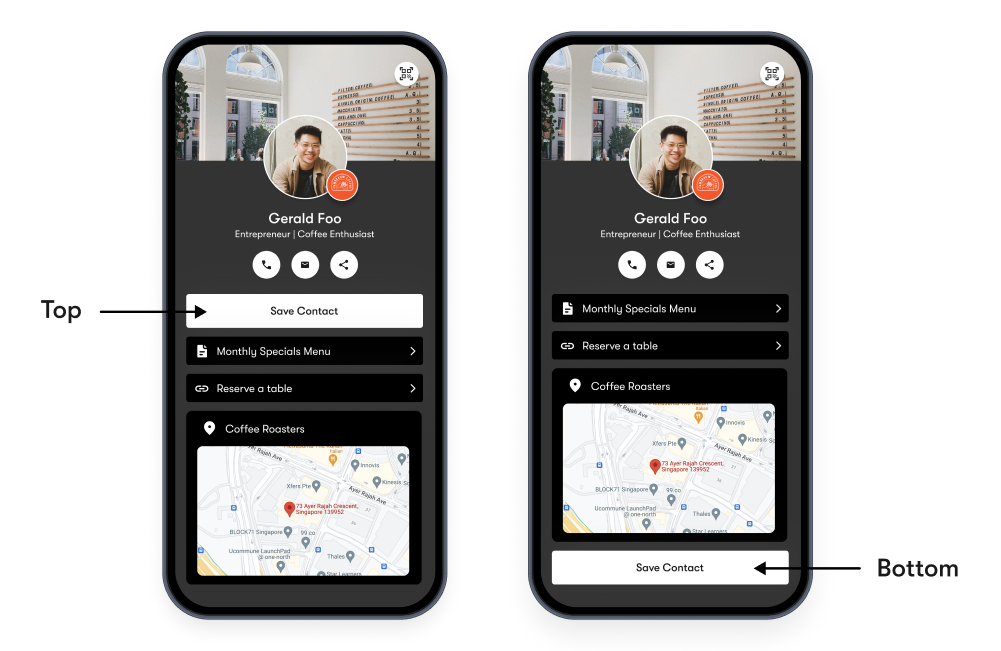
When editing your profile, you can customise the position of the 'Save Contact' button:
- Head to Advanced Settings
- Scroll down to 'Save Contact Button' Position
- Select Position: Choose either 'Top' or 'Bottom' position for the button. The default position is at the bottom.
Common Issues & Fixes
- Cannot scan NFC card: Ensure NFC is enabled and the card is not blocked by a case.
- QR code not scanning: Ensure proper lighting and focus, or use the shareable link instead.
- Contact not saving: Check your internet connection and app permissions.