
Serial VaultUpdated 2 months ago
The Serial Vault is a powerful tool within the One Good Card for Teams Dashboard that allows admins to centrally store, manage, and assign One Good Card serial numbers to team members. It’s especially useful for organisations that have previously bulk-purchased generic company-branded cards and want to reuse them for new staff or rotate cards across departments.
What Is Serial Vault?
The Serial Vault is a central repository where your organisation’s unused or unassigned serial numbers are stored. Instead of losing track of serial codes or manually managing them, admins can easily store, retrieve, and assign serials directly from the OGC for Teams Dashboard.
Why Use Serial Vault?
- Reuse existing cards for new hires without buying new stock.
- Transfer cards between employees quickly.
- Bulk-manage serial numbers purchased in previous batches.
- Keep everything organised in one central place instead of spreadsheets.
- Prevent lost, duplicated, or misassigned serial numbers.
Where to Find Serial Vault
- Log in to your OGC for Teams Admin Dashboard.
- On the sidebar menu, under Business Cards, head to Serial Vault.
Activate a New Product
- Under Manage Products, select Activate, and select your OGC Product (card, mini, ring)
- Enter the Serial Number (found on the packaging)
- Select the team member you would like to activate this product for
- Click Activate.
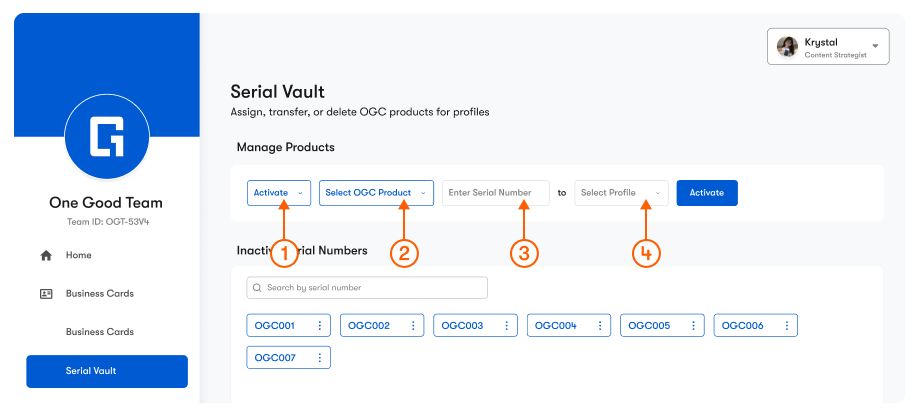
The OGC Product will now be activated and linked to the member’s profile and ready for use.
Unlink a Product
Unlinking is useful when an employee leaves the company or needs their card reassigned.
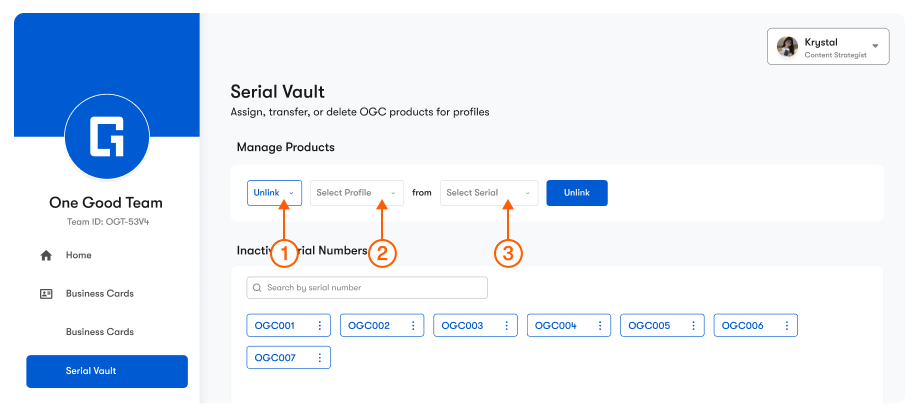
- Under Manage Products, select Unlink
- Select the Profile that has the product you would like to unlink, and select the serial number.
- Click Unlink, and the serial number automatically returns to your Inactive Serial Numbers for reuse.
✨ Pro Tip:
- If a staff member leaves, it is recommended to unlink or transfer their serial first before deleting their profile/account if you would like to reuse their OGC product.
Transfer a Product to another Member
You can directly transfer a serial from one employee to another.
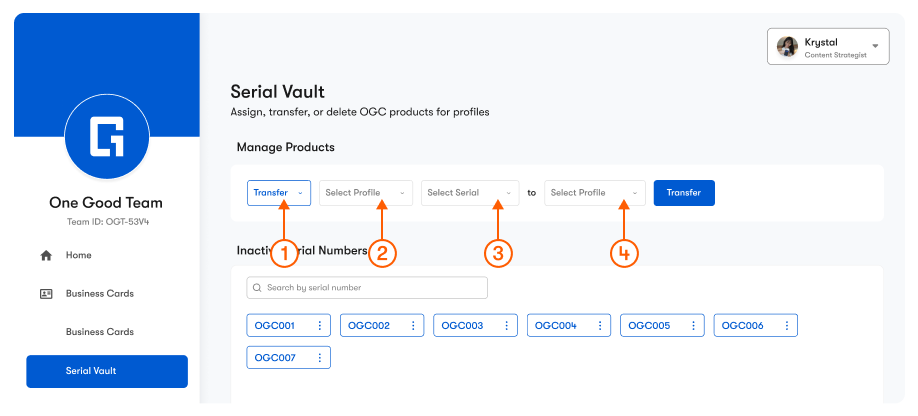
- Under Manage Products, select Transfer
- Select the Profile that currently has the product, and select the serial number.
- Select the new member who should receive the product.
- Click Transfer, and the product will now be assigned to the newly selected member.
Assign Inactive Products
If you have previously unlinked a product, it will be stored in your Serial Vault under Inactive Serial Numbers. You will be able to link and reuse the product to new team members.
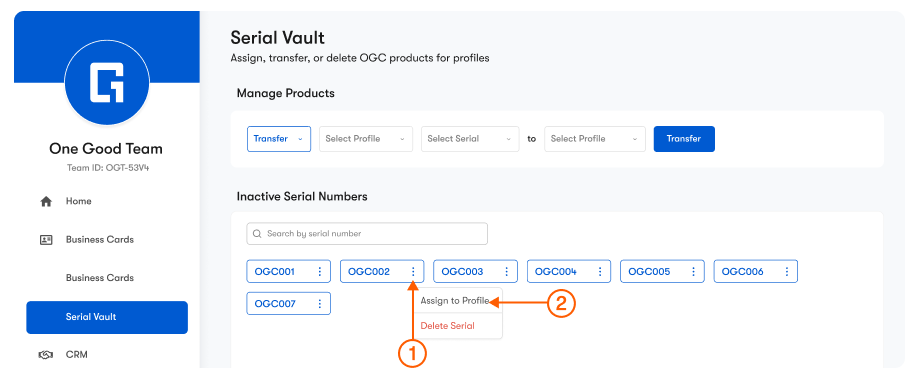
- Head to the Serial Vault, and Inactive Serial Numbers
- Locate the serial number you would like to assign to your new team member
- Click the vertical ellipsis ⋮ , and click Assign to Profile
- Select Profile to assign, and click Assign to confirm
Frequently Asked Questions
Q: Do I need new cards for new employees?
A: Not necessarily. If you have unused cards, you can store and assign them through Serial Vault without additional purchases.
Q: Can a serial number be reused?
A: Yes. Once unlinked, a serial automatically returns to Serial Vault and can be assigned to another team member.
Q: What if we have very old batches of cards?
A: As long as the serials are valid, they can be activated and reused.
Q: Does Serial Vault work with One Good Ring or Mini?
A: Yes, Serial Vault supports all One Good Card hardware products.