
Setting up your One Good CardUpdated 2 months ago
Just got your One Good Card? Great choice 🎉 Setting it up takes only a few minutes, and once you’re done, you’ll have a fully customised digital profile that’s ready to share with just a tap or a scan. Follow these key steps to get started:
Step 1: Create Your Account
Start by creating your One Good Card account. This will be your main dashboard, where you can manage all your profile details, card settings, and sharing preferences. Simply sign up with your email and set a secure password. Once done, you’ll be ready to move on to activating your card.
Step 2: Activate Your Serial Number
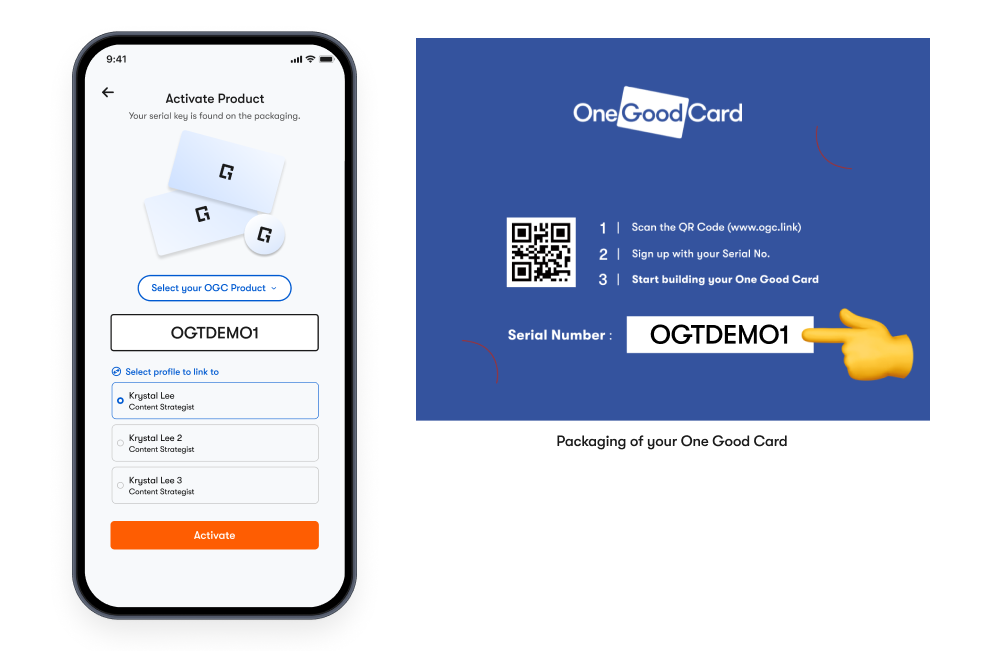
Every One Good Card comes with a unique serial number. Enter this serial number during setup to link your physical card to your digital account. This step ensures your card is activated and ready to be used for sharing your profile with others. You can also choose to activate later on.
Step 3: Design Your Digital Profile
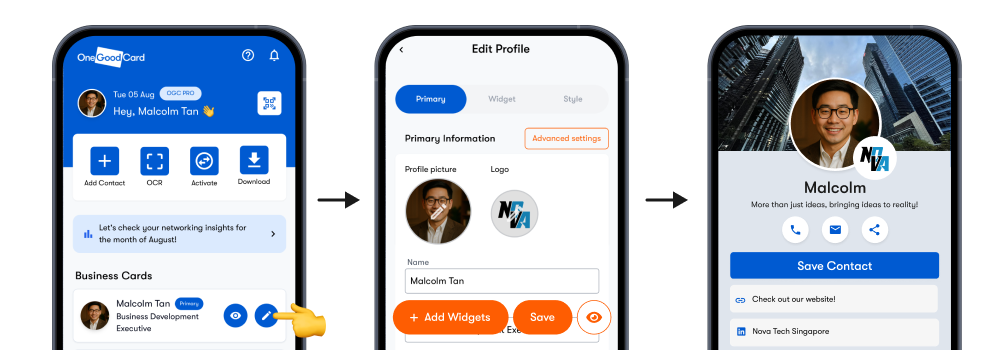
Now comes the fun part — designing your profile! Add your name, job title, company, and a short bio. You can also upload a profile photo, include social media links, and highlight key contact details like phone, email, and website. Think of it as your modern-day business card, but fully customisable. You may refer to this guide category to learn how you can utilise each widget.
Step 4: Share Your One Good Card
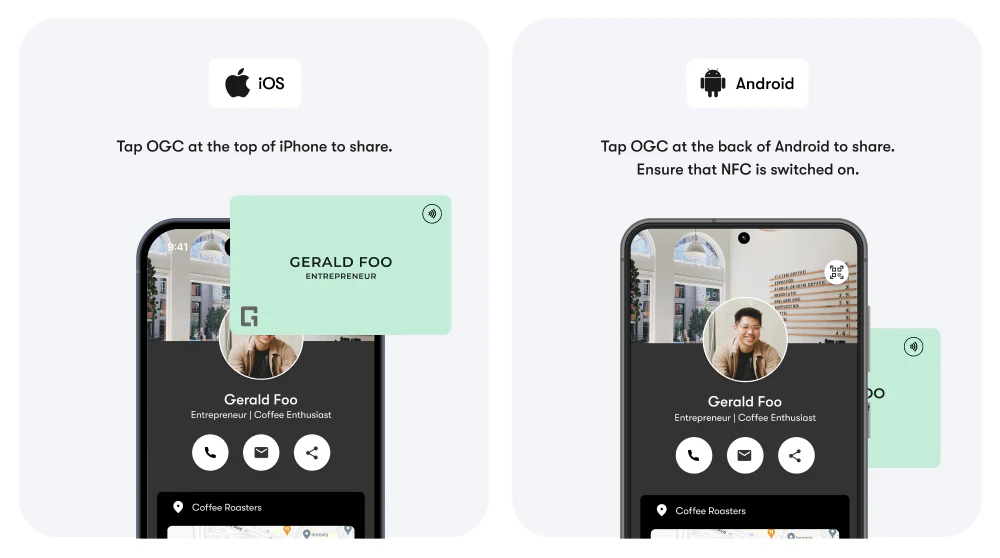
With your card activated and your profile set up, you’re ready to share it. Tap your card on an NFC-enabled phone or let others scan the QR code printed on your card. They’ll instantly see your profile, and you can start networking smarter, faster, and paper-free.
✨ Pro Tips:
- Keep your profile updated — especially if you change roles, phone numbers, or social media links.
- Add multiple ways to connect, like WhatsApp, LinkedIn, or Instagram to give people options.
- Customise your profile design to match your personal or company branding for a professional look.
Frequently Asked Questions
Q: Do I need to download an app to use One Good Card?
A: Nope! Your One Good Card works directly through the browser — no app required.
Q: What if someone’s phone doesn’t support NFC?
A: They can simply scan the QR code printed on your card to access your profile instantly.
Q: Can I use One Good Card without a physical card?
A: Yes! You can upgrade to a digital-only plan and share your profile via link or QR code.