
Team Templates & Personalised Widget FieldsUpdated 2 months ago
Team Templates help admins design and manage consistent digital business card profiles for their entire organisation, without manually editing each profile one by one. With templates, you can centrally control branding, layout, and widgets, while still allowing flexibility for individual team members where needed.
Templates are especially useful for companies that want:
- Consistent branding across all employee profiles
- Faster onboarding for new hires
- Centralised control over profile layouts and widgets
What can you Customise in a Team Template?
Admins can fully customise the following within a template:
- Widgets Inputs: Contact details, social links, maps, files, videos, forms, and more
- Widget Order: Control how information is displayed top-to-bottom
- Profile Styling: Backgrounds, button colours, text colours, and layout
- Locked Fields: Prevent users from editing certain widgets or sections
How to Create or Edit a Team Template
- Head to https://teams.ogc.link
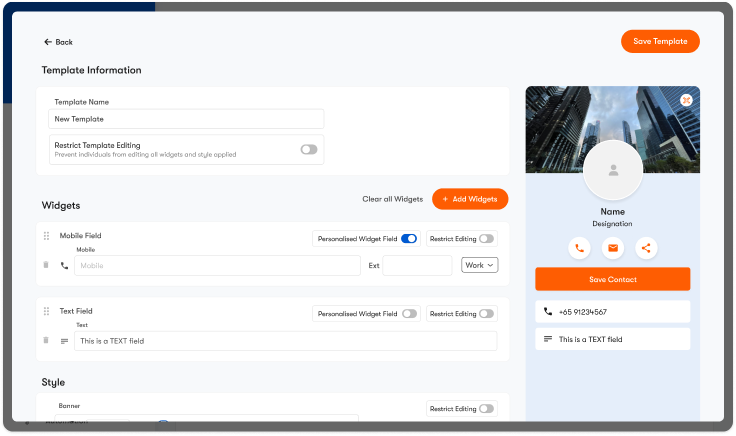
- Navigate to Business Cards page, and Team Templates in the first section.
- Click Add New Template or select an existing template to edit.
- Customise your Template Name to organise better.
- Click + Add Widgets to select the widgets you want to appear on all team profiles.
- Customise the styling to match your company branding.
- Once done, save the template.
Applying a Template to Team Members
Once a template is created, you can apply it to multiple team members:
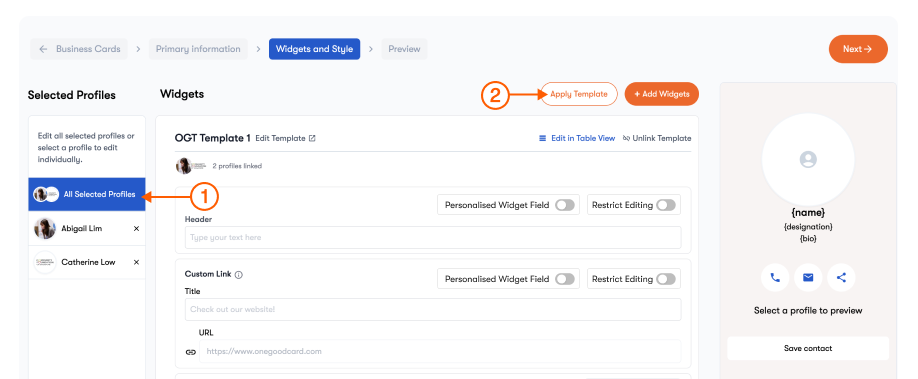
- Go to Business Cards.
- Select the team members you want to edit, and click Edit Profiles.
- Click Next → to proceed to the Widgets & Style page.
- Ensure that you are on All Selected Profiles, and click Apply Template.
- Select the template you would like to apply, and click Apply Template.
- There will be 2 options to choose from:
- Change Template: The selected template (with widgets and styles) will be applied to the profile. Any existing add-on widgets will remain on the profile.
- Overwrite Profile: The selected template will be applied to the profile. Any existing add-on widgets will be removed from the profile.
- Once you have selected your method of applying the template, click Next → to proceed.
- Preview the profiles to ensure that the changes are accurate. Once done, click Save.
What are Personalised Widget Fields?
Personalised Widget Field is a powerful new feature that allows admins to include widgets in a team template while inputting unique values for each team member individually.
This is especially useful for widgets that contain unique information per person, such as:
- Phone numbers
- Email addresses
- WhatsApp numbers
- Social Media profiles (e.g. LinkedIn)
How Personalised Widget Fields Work?
- Admins add the widget to the team template.
- Admins enable Personalised Widget Field for that widget.
- The widget appears on every team member’s profile, but can only be edited on the individual level
- Admins will be able to input unique values (e.g. phone number or email) without changing the overall layout or style.
How to Enable Personalised Widgets?
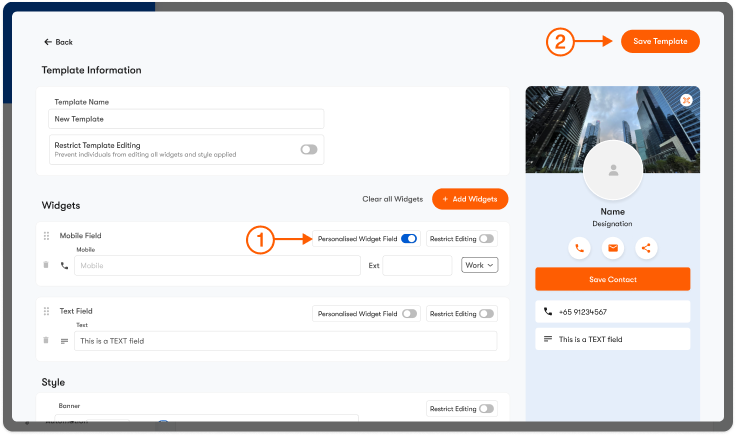
- Select a Team Template to edit.
- Add or select a widget (e.g. Phone, Email).
- Toggle Personalised Widget Field ON. You will not be able to input any values in the widget.
- Save the template.
How to input values on Personalised Widget Fields?
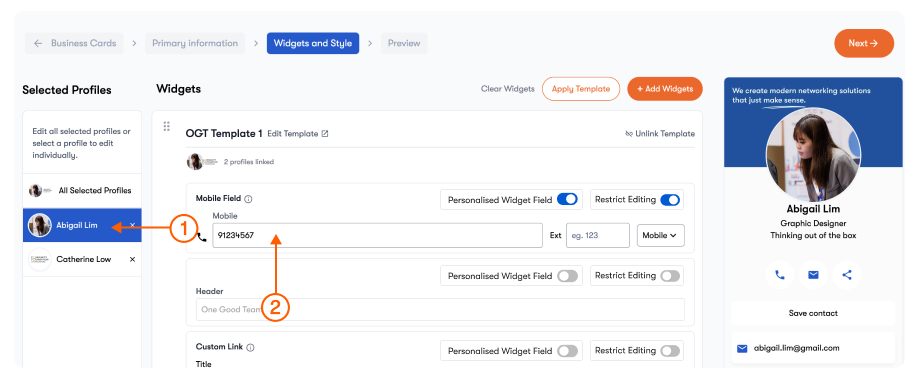
- On the Business Card editing page, head to the Widgets & Style page
- Apply the Team Template
- You will be able to edit Widgets with Personalised Widget Field ON, on the individual level
- Once done, click Next → and Save.
✨ Pro Tips:
- Use templates to lock branding elements like colours, layouts, and headers.
- Create different templates for departments (e.g. Sales, Marketing, Leadership).
- Update templates anytime, and changes will automatically be applied to team members with the template.
Frequently Asked Questions
Q: Can team members edit widgets added via templates?
A: Only widgets which have Restrict Editing disabled can be edited by individual users.
Q: Will editing a template affect existing profiles?
A: Yes. When editing a template, updates will reflect across selected team members’ profiles instantly.
Q: Can I mix locked and personalised widgets in one template?
A: Absolutely. This allows you to maintain brand control while still giving flexibility where needed.
Q: Is this feature available to all teams?
A: Team Templates and Personalised Field Widgets are available for One Good Card for Teams plans.